
How to Start an Online Book Club with HomeBranch
An online book club works best when everyone knows what to read, where to talk, and what the group can see. HomeBranch gives readers on the same instance a club home, a milestone reading plan, and threaded discussions. This guide walks through the shipped book-club UI; see the book club feature overview for a visual tour.
1. Get your readers onto the same instance
Use HomeBranch API and Web v1.9.0 or later with compatible Authentication (v1.5.0 for the coordinated v1.9.0 release). For a new installation, follow the self-hosting guide. Each participant needs their own account on that instance. Clubs and invitations do not span separate HomeBranch servers.
Pick a book your members can legally access. They do not have to use identical editions: your club will follow a logical work and shared checkpoints, while each member selects their own accessible reading copy. Public-domain classics can be useful for a first read; check the rights of the specific text, translation, and cover in your jurisdiction.
2. Create your club and choose a book
- Sign in and open Book clubs.
- Choose Create club, enter a name, and choose a book from your own library.
- Add an optional description to explain the group's pace or interests.
- Choose Open to everyone or Private: invitation only, then create the club.
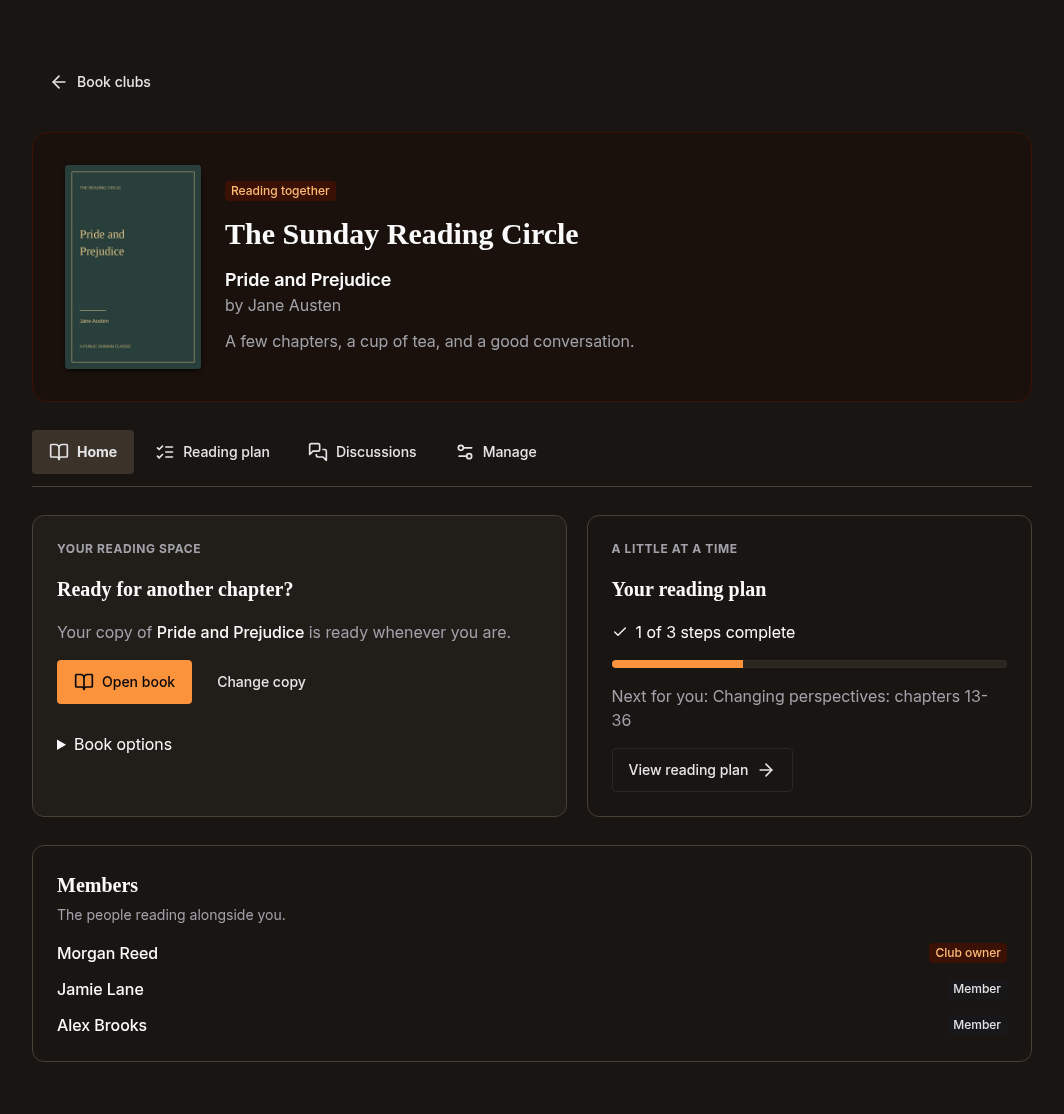
"Open to everyone" means discoverable by accounts on your instance, not anyone on the internet. Private clubs are not discoverable to non-members and require an accepted invitation. Your new club opens on its Home tab.
3. Invite readers or join an open club
Club owners and moderators can use Manage to send invitations to accounts on the instance. Recipients review and accept them in the Invitations view. An invitation is not membership until it has been accepted.
To find an open club, choose Discover in Book clubs, open the club, and choose Join club. Members can participate in discussions before choosing a reading copy.
4. Select your reading copy
On the club Home tab, choose Choose your copy in the reading-copy panel and select an accessible book that matches the selected work. Suggested edition matches need your confirmation; review the title and author rather than treating every suggestion as an exact match.
Each member chooses their own copy. Club membership does not share ebook files or change library permissions. Self-hosted instances keep their existing local access rules; Cloud allows personal copies from the signed-in reader's own library, not another member's uploads. A selected, accessible copy is required to record milestone progress.
Changing or removing your reading copy clears your club progress and private edition labels for that work, not your library book or private reader history.
5. Set a comfortable reading plan
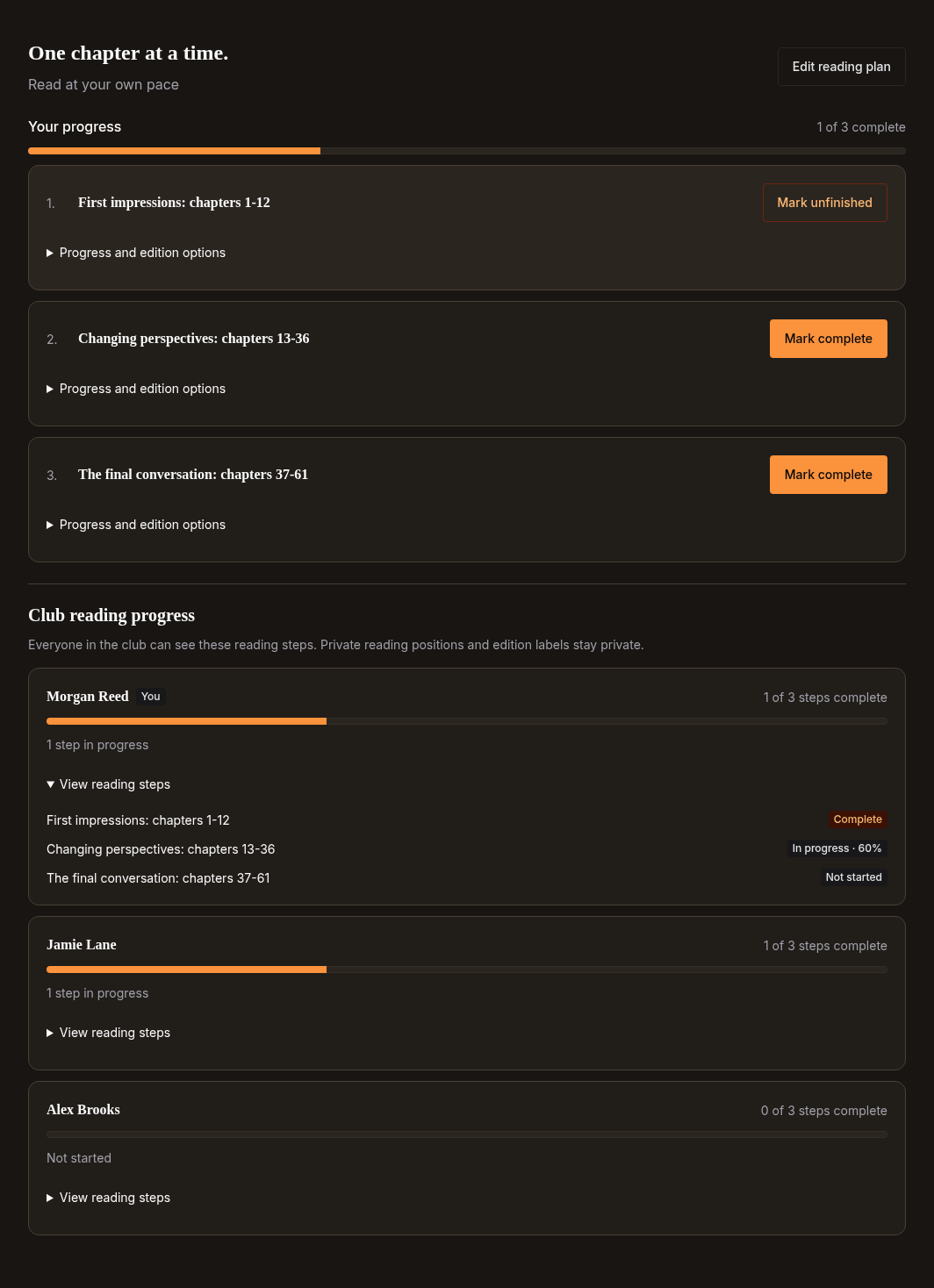
Owners and moderators can open Reading plan, choose Edit reading plan, and add chapters, parts, or named checkpoints. Optional start and finish dates help set expectations. Use names everyone can recognize, especially when editions use different chapter numbering.
Members can mark steps complete or open Progress and edition options to record an in-progress state or a private label for their edition. The Club reading progress section shows member summaries; expand View reading steps to see individual checkpoints.
Everyone currently in the club can see milestone progress. There is no opt-out toggle, and members who have not started are included. Exact reader locations, private edition labels, highlights, and notes are not exposed through this feature. Marking club steps does not update your saved position in the reader.
6. Start a discussion and use spoiler controls
Open Discussions and choose Start a discussion. Ask an original question about the current section, or use an organizer prompt if you are an owner or moderator. Readers can reply in a thread, and moderators can pin useful prompts or manage conversations.
Mark posts containing plot details as spoilers. In an opened thread, each spoiler-marked post has its own reveal control, so readers decide what to see. These controls depend on authors marking spoilers; they do not automatically detect plot details or reveal them based on your reading milestones.
Keep the first read simple
Start with a few checkpoints and one discussion prompt. Agree on a pace that suits your members, explain what club progress reveals, and let everyone choose when to open spoilers. The book-club overview shows the club list, Home, reading-plan, and discussion screens.
Screenshots use real UI, fictional members, public-domain texts, and original covers. View screenshot sources and rights notes.
Frequently asked questions
Can friends on different HomeBranch servers join the same club?
No. Book clubs, membership, discovery, and invitations are local to one HomeBranch instance. Everyone needs an account on that same instance.
Does joining a book club share ebook files?
No. Club membership does not distribute files or grant new library access. Each member selects a reading copy they are already authorized to access. Self-hosted library permissions still apply; Cloud readers can select only their own books.
Can I hide my club reading progress?
No. Club milestone progress is visible to all current members, including steps not yet started. Private reader locations, edition labels, highlights, and notes are not exposed through club progress.
Do book-club milestones change my saved reading position?
No. Club milestones are separate from private reader positions. Marking a checkpoint complete does not move your place in the book.
Are spoilers revealed automatically when I reach a milestone?
No. Authors can mark individual posts as spoilers, and readers choose whether to reveal each item. Milestone progress does not automatically reveal or classify spoilers.